Home Forums Articles How To's FAQ Register
Go Back   Xoutpost.com > BMW SAV Forums > X5 (E53) Forum
Arnott
User Name
Password
Member List Premier Membership Today's Posts New Posts

Xoutpost server transfer and maintenance is occurring....
Xoutpost is currently undergoing a planned server migration.... stay tuned for new developments.... sincerely, the management


Reply
 
LinkBack Thread Tools Display Modes
  #1  
Old 12-24-2010, 10:23 AM
bdriven's Avatar
Member
 
Join Date: May 2008
Location: Florida
Posts: 156
bdriven is on a distinguished road
Quote:
Originally Posted by TwinsPoppa View Post
1 – Set your laptop IP address, Subnet Mask and Default Gateway
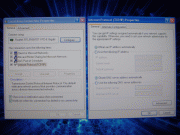
a) Go to Start Menu, Control Panel and open Network Connections. Right-click on the Local Area Connection you will be using and select Properties.


b) The Local Area Connection Properties dialog box pops up. Highlight Internet Protocol (TCP/IP) and click on the Properties button. The Internet Protocol (TCP/IP) Properties dialog box pops up.


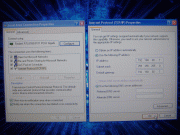
c) Select the Use the following IP address radio button. Enter the following information and select the OK button afterwards:
IP = 192.168.68.1
Subnet Mask = 255.255.255.0
Default Gateway = 192.168.68.1


2 – Install & Configure VMware Player software
a) Copy the VMware Player install EXE onto your HDD, along with the DIS v55 files, for faster installation. The files total about 6GB.

b) Run the install EXE and follow the prompts and any recommendations.

c) After the reboot, run VMware Player. Under Commands double-click on the Open icon. The Open Virtual Machine dialog box pops up. Navigate to where you stored the DIS v55 files on your HDD and select the DIS 55 English.vmx file – click on the Open button to continue.


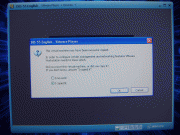
d) You will receive a pop-up that asks if you move or copied the virtual machine. Select the I copied it radio button and click on the OK button to continue.


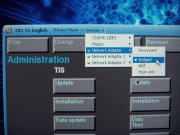
e) Once DIS v55 is open go to the menu bar at the top and select Devices. From the pull-down menu, mouse over Network Adapter and click on Bridged at the following menu. Notice it also says Disconnect above it. This means it’s already CONNECTED – don’t click on Disconnect. Apply those settings for both Network Adapter 2 and Network Adapter 3.


3 – Configure DIS v55 to recognize DK (yellow diagnostic head)
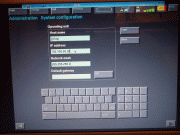
a) Hit CTRL + G to switch to DIS v55. You will be in the Administration section by default. Select Config, System and look under Operating Unit. Set Operating Unit IP address to = 192.168.68.35. Leave Network Mask as the default 255.255.255.0. Leave Host Name to the default of "gt1ap". Leave Default Gateway as blank also by default.


b) After all of that, you need to connect to the OBD-II on the X. It must be connected to the OBD-II port on the X as if you're about to run Diagnostics.

c) If you left, go back into Administration, Admin., Connection Setup and look under Operating Unit. You should now see an item under Free Diagnostic Heads. Highlight the item and then select Connecting.


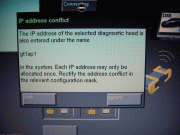
d) You will receive an IP address conflict prompt for "gt1ap1" (notice it is not "gt1ap"), select IGNORE. You will receive another similar prompt but it will say "gt1ap" this time, select IGNORE.


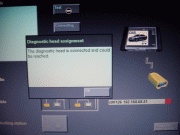
e) You will see a progress bar while its connecting. Once its finished select the TEST button and you should see a screen saying diagnostic head is connected and could be reached.


Done!
I follow every step, I never get to see anything under free diagnostic heads.
Reply With Quote
  #2  
Old 12-24-2010, 05:41 PM
TwinsPoppa's Avatar
Member
 
Join Date: Sep 2008
Location: Silver Spring, MD
Posts: 3,523
TwinsPoppa is on a distinguished road
Quote:
Originally Posted by bdriven View Post
I follow every step, I never get to see anything under free diagnostic heads.

If I'm not mistaken, you will NOT see any free diagnostic head if it's ALREADY SEEN by the system.

Do you see the green bar indicating the system can see the diagnostic head?

Do you have a manual trans? If so, you have to put it in neutral.

Any way to get a screen shot of what you are seeing at the main DIS screen?

Assumptions, correct me if any of these are wrong:

1) You are using vmware. What version are you using?
2) You have the round OBD connector in the engine compartment.
3) When you try the GT1, you are actually connecting the GT1 to the round OBD connector under the hood (not the one under the dash).
Reply With Quote
  #3  
Old 12-24-2010, 06:16 PM
bdriven's Avatar
Member
 
Join Date: May 2008
Location: Florida
Posts: 156
bdriven is on a distinguished road
Thanks a million for your reply:


Do you see the green bar indicating the system can see the diagnostic head?

nope, the system isn't seeing anything no bars at the top whatsoever.

Do you have a manual trans? If so, you have to put it in neutral.

nope, auto tranny.

Any way to get a screen shot of what you are seeing at the main DIS screen?

I will post some tomorrow, when I play some more with it.

Assumptions, correct me if any of these are wrong:

1) You are using vmware. What version are you using?

2.5.2

2) You have the round OBD connector in the engine compartment.

yup, round connector under hood ( only thing to notice here, should I have a female #15 in the connector??)

3) When you try the GT1, you are actually connecting the GT1 to the round OBD connector under the hood (not the one under the dash).

Correct !
Reply With Quote
  #4  
Old 12-24-2010, 06:51 PM
TwinsPoppa's Avatar
Member
 
Join Date: Sep 2008
Location: Silver Spring, MD
Posts: 3,523
TwinsPoppa is on a distinguished road
Quote:
Originally Posted by bdriven View Post
Thanks a million for your reply:


Do you see the green bar indicating the system can see the diagnostic head?

nope, the system isn't seeing anything no bars at the top whatsoever.

Do you have a manual trans? If so, you have to put it in neutral.

nope, auto tranny.

Any way to get a screen shot of what you are seeing at the main DIS screen?

I will post some tomorrow, when I play some more with it.

Assumptions, correct me if any of these are wrong:

1) You are using vmware. What version are you using?

2.5.2

2) You have the round OBD connector in the engine compartment.

yup, round connector under hood ( only thing to notice here, should I have a female #15 in the connector??)

3) When you try the GT1, you are actually connecting the GT1 to the round OBD connector under the hood (not the one under the dash).

Correct !
Sorry, I meant what DIS version number. I'll try and reply tomorrow. Otherwise, happy holidays!
Reply With Quote
  #5  
Old 01-09-2011, 03:58 AM
NBTBRV8's Avatar
Member
 
Join Date: Apr 2008
Location: Australia
Posts: 182
NBTBRV8 is on a distinguished road
I finished retrofitting rear PDC to an e90 last week, it coded up fine and all up probably took 10-15 minutes. These units are so handy.


Reply With Quote
  #6  
Old 01-09-2011, 09:57 AM
mywidebody02's Avatar
Member
 
Join Date: Nov 2007
Location: Connecticut
Posts: 704
mywidebody02 is on a distinguished road
Nice. this has to be one of the best threads.
__________________
04 X5 4.8is
76 2002

X-Pipe and Dinan Mufflers: www.youtube.com/watch?v=eWQh-izaTcY

Pics http://www.flickr.com/photos/stevenb...7607968312734/
Reply With Quote
  #7  
Old 02-13-2011, 03:21 AM
NBTBRV8's Avatar
Member
 
Join Date: Apr 2008
Location: Australia
Posts: 182
NBTBRV8 is on a distinguished road
I've just done a E90 business > professional navigation retrofit and all of my SSS coding is in this thread: E90 Business > CCC Professional Navigation Retrofit - BMW 3-Series (E90 E92) Forum - E90Post.com
Reply With Quote
Reply

Bookmarks

Tags
gt1 setup


Posting Rules
You may not post new threads
You may not post replies
You may not post attachments
You may not edit your posts

BB code is On
Smilies are On
[IMG] code is On
HTML code is Off
Trackbacks are On
Pingbacks are On
Refbacks are On


All times are GMT -4. The time now is 09:39 AM.
vBulletin, Copyright 2026, Jelsoft Enterprises Ltd. SEO by vBSEO 3.6.0
© 2017 Xoutpost.com. All rights reserved. Xoutpost.com is a private enthusiast site not associated with BMW AG.
The BMW name, marks, M stripe logo, and Roundel logo as well as X3, X5 and X6 designations used in the pages of this Web Site are the property of BMW AG.
This web site is not sponsored or affiliated in any way with BMW AG or any of its subsidiaries.