Home Forums Articles How To's FAQ Register
Go Back   Xoutpost.com > BMW SAV Forums > X5 (E53) Forum
Fluid Motor Union
User Name
Password
Member List Premier Membership Today's Posts New Posts

Xoutpost server transfer and maintenance is occurring....
Xoutpost is currently undergoing a planned server migration.... stay tuned for new developments.... sincerely, the management


Reply
 
LinkBack Thread Tools Display Modes
  #501  
Old 12-03-2010, 02:37 PM
Member
 
Join Date: Dec 2010
Location: UK
Posts: 4
Lestat is on a distinguished road
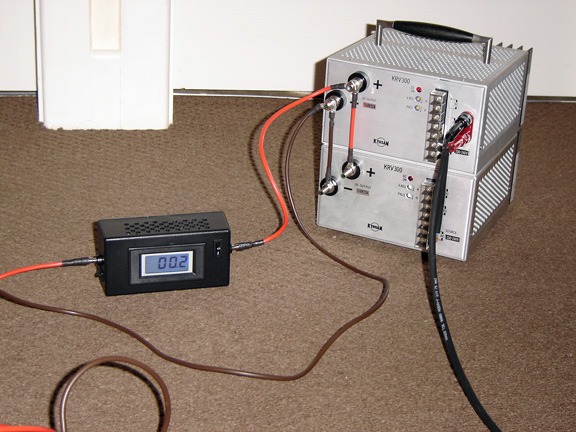
I present you with my power supply rig for programming/diagnostic use: 13.8V/44A of continuous industrial strength with the added benefit of having an ammeter on the positive lead.

In case you're wondering, I've bought the 2 power supply units (22A each) from ebay at £60 all in, ammeter + shunt were about £15 and the project box/leads/connectors etc. some £20.
Name:  DSC04385.JPG
Views: 1591
Size:  132.6 KB
Reply With Quote

Sponsored Links

  #502  
Old 12-03-2010, 03:05 PM
TwinsPoppa's Avatar
Member
 
Join Date: Sep 2008
Location: Silver Spring, MD
Posts: 3,523
TwinsPoppa is on a distinguished road
Quote:
Originally Posted by Lestat View Post
I present you with my power supply rig for programming/diagnostic use: 13.8V/44A of continuous industrial strength with the added benefit of having an ammeter on the positive lead.

In case you're wondering, I've bought the 2 power supply units (22A each) from ebay at £60 all in, ammeter + shunt were about £15 and the project box/leads/connectors etc. some £20.

Attachment 46174
Looks great! Definitely like it when there's an actual number readout you can see.
Reply With Quote
  #503  
Old 12-03-2010, 03:35 PM
Member
 
Join Date: Dec 2010
Location: UK
Posts: 4
Lestat is on a distinguished road
Quote:
Originally Posted by TwinsPoppa View Post
Looks great! Definitely like it when there's an actual number readout you can see.
Thanks, it was actually this thread that got me started so I thought would be nice to post the results back here.

The only thing I would point out is when you buy, you guys make sure the spec mentions 'continuous' otherwise it might be max. which means you'll be getting about half your money's worth. Or worse, might not do the job.
Reply With Quote
  #504  
Old 12-22-2010, 09:22 PM
bdriven's Avatar
Member
 
Join Date: May 2008
Location: Florida
Posts: 156
bdriven is on a distinguished road
Quote:
Originally Posted by TwinsPoppa View Post
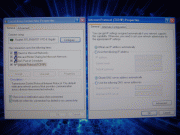
1 – Set your laptop IP address, Subnet Mask and Default Gateway
a) Go to Start Menu, Control Panel and open Network Connections. Right-click on the Local Area Connection you will be using and select Properties.


b) The Local Area Connection Properties dialog box pops up. Highlight Internet Protocol (TCP/IP) and click on the Properties button. The Internet Protocol (TCP/IP) Properties dialog box pops up.


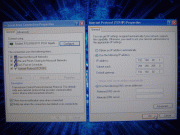
c) Select the Use the following IP address radio button. Enter the following information and select the OK button afterwards:
IP = 192.168.68.1
Subnet Mask = 255.255.255.0
Default Gateway = 192.168.68.1


2 – Install & Configure VMware Player software
a) Copy the VMware Player install EXE onto your HDD, along with the DIS v55 files, for faster installation. The files total about 6GB.

b) Run the install EXE and follow the prompts and any recommendations.

c) After the reboot, run VMware Player. Under Commands double-click on the Open icon. The Open Virtual Machine dialog box pops up. Navigate to where you stored the DIS v55 files on your HDD and select the DIS 55 English.vmx file – click on the Open button to continue.


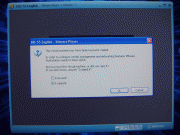
d) You will receive a pop-up that asks if you move or copied the virtual machine. Select the I copied it radio button and click on the OK button to continue.


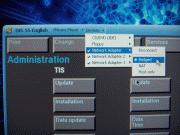
e) Once DIS v55 is open go to the menu bar at the top and select Devices. From the pull-down menu, mouse over Network Adapter and click on Bridged at the following menu. Notice it also says Disconnect above it. This means it’s already CONNECTED – don’t click on Disconnect. Apply those settings for both Network Adapter 2 and Network Adapter 3.


3 – Configure DIS v55 to recognize DK (yellow diagnostic head)
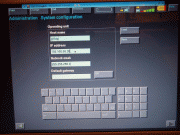
a) Hit CTRL + G to switch to DIS v55. You will be in the Administration section by default. Select Config, System and look under Operating Unit. Set Operating Unit IP address to = 192.168.68.35. Leave Network Mask as the default 255.255.255.0. Leave Host Name to the default of "gt1ap". Leave Default Gateway as blank also by default.


b) After all of that, you need to connect to the OBD-II on the X. It must be connected to the OBD-II port on the X as if you're about to run Diagnostics.

c) If you left, go back into Administration, Admin., Connection Setup and look under Operating Unit. You should now see an item under Free Diagnostic Heads. Highlight the item and then select Connecting.


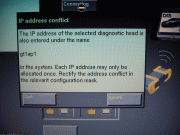
d) You will receive an IP address conflict prompt for "gt1ap1" (notice it is not "gt1ap"), select IGNORE. You will receive another similar prompt but it will say "gt1ap" this time, select IGNORE.


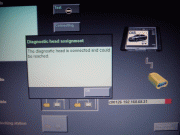
e) You will see a progress bar while its connecting. Once its finished select the TEST button and you should see a screen saying diagnostic head is connected and could be reached.


Done!
Hi, I have done all the steps above, with no success, now, you mention that it must connected to the OBD, not the round connector under hood? right?
Thanks!
Reply With Quote
  #505  
Old 12-22-2010, 09:40 PM
mywidebody02's Avatar
Member
 
Join Date: Nov 2007
Location: Connecticut
Posts: 704
mywidebody02 is on a distinguished road
Quote:
Originally Posted by bdriven View Post
Hi, I have done all the steps above, with no success, now, you mention that it must connected to the OBD, not the round connector under hood? right?
Thanks!
if your truck has the round connector under the hood you must use that. the cap twists off and the cable goes on the twist till tight. is your vehicle manual or auto. need to supply year engine and tranny when asking questions. you also haven't really explained the trouble you r having. r u getting any bars at the top left? does it even see the head?
__________________
04 X5 4.8is
76 2002

X-Pipe and Dinan Mufflers: www.youtube.com/watch?v=eWQh-izaTcY

Pics http://www.flickr.com/photos/stevenb...7607968312734/
Reply With Quote
  #506  
Old 12-24-2010, 10:23 AM
bdriven's Avatar
Member
 
Join Date: May 2008
Location: Florida
Posts: 156
bdriven is on a distinguished road
Quote:
Originally Posted by TwinsPoppa View Post
1 – Set your laptop IP address, Subnet Mask and Default Gateway
a) Go to Start Menu, Control Panel and open Network Connections. Right-click on the Local Area Connection you will be using and select Properties.


b) The Local Area Connection Properties dialog box pops up. Highlight Internet Protocol (TCP/IP) and click on the Properties button. The Internet Protocol (TCP/IP) Properties dialog box pops up.


c) Select the Use the following IP address radio button. Enter the following information and select the OK button afterwards:
IP = 192.168.68.1
Subnet Mask = 255.255.255.0
Default Gateway = 192.168.68.1


2 – Install & Configure VMware Player software
a) Copy the VMware Player install EXE onto your HDD, along with the DIS v55 files, for faster installation. The files total about 6GB.

b) Run the install EXE and follow the prompts and any recommendations.

c) After the reboot, run VMware Player. Under Commands double-click on the Open icon. The Open Virtual Machine dialog box pops up. Navigate to where you stored the DIS v55 files on your HDD and select the DIS 55 English.vmx file – click on the Open button to continue.


d) You will receive a pop-up that asks if you move or copied the virtual machine. Select the I copied it radio button and click on the OK button to continue.


e) Once DIS v55 is open go to the menu bar at the top and select Devices. From the pull-down menu, mouse over Network Adapter and click on Bridged at the following menu. Notice it also says Disconnect above it. This means it’s already CONNECTED – don’t click on Disconnect. Apply those settings for both Network Adapter 2 and Network Adapter 3.


3 – Configure DIS v55 to recognize DK (yellow diagnostic head)
a) Hit CTRL + G to switch to DIS v55. You will be in the Administration section by default. Select Config, System and look under Operating Unit. Set Operating Unit IP address to = 192.168.68.35. Leave Network Mask as the default 255.255.255.0. Leave Host Name to the default of "gt1ap". Leave Default Gateway as blank also by default.


b) After all of that, you need to connect to the OBD-II on the X. It must be connected to the OBD-II port on the X as if you're about to run Diagnostics.

c) If you left, go back into Administration, Admin., Connection Setup and look under Operating Unit. You should now see an item under Free Diagnostic Heads. Highlight the item and then select Connecting.


d) You will receive an IP address conflict prompt for "gt1ap1" (notice it is not "gt1ap"), select IGNORE. You will receive another similar prompt but it will say "gt1ap" this time, select IGNORE.


e) You will see a progress bar while its connecting. Once its finished select the TEST button and you should see a screen saying diagnostic head is connected and could be reached.


Done!
I follow every step, I never get to see anything under free diagnostic heads.
Reply With Quote
  #507  
Old 12-24-2010, 12:06 PM
Zulu95's Avatar
Member
 
Join Date: Mar 2005
Location: Show Me
Posts: 2,636
Zulu95 is on a distinguished road
FWIW
Peake have a new computer interface on the drawing board for the owner/DIYer market. I don't have any more details than this but, considering the trouble most seem to experience with the far eastern clones, that's where I'll be investing my $$$ when the time comes.
I now return this thread to its rightful owners!
Reply With Quote
  #508  
Old 12-24-2010, 05:41 PM
TwinsPoppa's Avatar
Member
 
Join Date: Sep 2008
Location: Silver Spring, MD
Posts: 3,523
TwinsPoppa is on a distinguished road
Quote:
Originally Posted by bdriven View Post
I follow every step, I never get to see anything under free diagnostic heads.

If I'm not mistaken, you will NOT see any free diagnostic head if it's ALREADY SEEN by the system.

Do you see the green bar indicating the system can see the diagnostic head?

Do you have a manual trans? If so, you have to put it in neutral.

Any way to get a screen shot of what you are seeing at the main DIS screen?

Assumptions, correct me if any of these are wrong:

1) You are using vmware. What version are you using?
2) You have the round OBD connector in the engine compartment.
3) When you try the GT1, you are actually connecting the GT1 to the round OBD connector under the hood (not the one under the dash).
Reply With Quote
  #509  
Old 12-24-2010, 06:16 PM
bdriven's Avatar
Member
 
Join Date: May 2008
Location: Florida
Posts: 156
bdriven is on a distinguished road
Thanks a million for your reply:


Do you see the green bar indicating the system can see the diagnostic head?

nope, the system isn't seeing anything no bars at the top whatsoever.

Do you have a manual trans? If so, you have to put it in neutral.

nope, auto tranny.

Any way to get a screen shot of what you are seeing at the main DIS screen?

I will post some tomorrow, when I play some more with it.

Assumptions, correct me if any of these are wrong:

1) You are using vmware. What version are you using?

2.5.2

2) You have the round OBD connector in the engine compartment.

yup, round connector under hood ( only thing to notice here, should I have a female #15 in the connector??)

3) When you try the GT1, you are actually connecting the GT1 to the round OBD connector under the hood (not the one under the dash).

Correct !
Reply With Quote
  #510  
Old 12-24-2010, 06:51 PM
TwinsPoppa's Avatar
Member
 
Join Date: Sep 2008
Location: Silver Spring, MD
Posts: 3,523
TwinsPoppa is on a distinguished road
Quote:
Originally Posted by bdriven View Post
Thanks a million for your reply:


Do you see the green bar indicating the system can see the diagnostic head?

nope, the system isn't seeing anything no bars at the top whatsoever.

Do you have a manual trans? If so, you have to put it in neutral.

nope, auto tranny.

Any way to get a screen shot of what you are seeing at the main DIS screen?

I will post some tomorrow, when I play some more with it.

Assumptions, correct me if any of these are wrong:

1) You are using vmware. What version are you using?

2.5.2

2) You have the round OBD connector in the engine compartment.

yup, round connector under hood ( only thing to notice here, should I have a female #15 in the connector??)

3) When you try the GT1, you are actually connecting the GT1 to the round OBD connector under the hood (not the one under the dash).

Correct !
Sorry, I meant what DIS version number. I'll try and reply tomorrow. Otherwise, happy holidays!
Reply With Quote
Reply

Bookmarks

Tags
gt1 setup


Posting Rules
You may not post new threads
You may not post replies
You may not post attachments
You may not edit your posts

BB code is On
Smilies are On
[IMG] code is On
HTML code is Off
Trackbacks are On
Pingbacks are On
Refbacks are On


All times are GMT -4. The time now is 09:26 AM.
vBulletin, Copyright 2026, Jelsoft Enterprises Ltd. SEO by vBSEO 3.6.0
© 2017 Xoutpost.com. All rights reserved. Xoutpost.com is a private enthusiast site not associated with BMW AG.
The BMW name, marks, M stripe logo, and Roundel logo as well as X3, X5 and X6 designations used in the pages of this Web Site are the property of BMW AG.
This web site is not sponsored or affiliated in any way with BMW AG or any of its subsidiaries.