Home Forums Articles How To's FAQ Register
Go Back   Xoutpost.com > BMW SAV Forums > X5 (E53) Forum
Fluid Motor Union
User Name
Password
Member List Premier Membership Today's Posts New Posts

Xoutpost server transfer and maintenance is occurring....
Xoutpost is currently undergoing a planned server migration.... stay tuned for new developments.... sincerely, the management


Reply
 
LinkBack Thread Tools Display Modes
  #161  
Old 03-29-2009, 04:46 PM
Member
 
Join Date: Mar 2006
Location: San Jose, CA
Posts: 114
koister2001 is on a distinguished road
Quote:
Originally Posted by TwinsPoppa
1) Initially you had a problem with being unable to diagnose or code with DIS v43. That was resolved by using the BMW 20-pin connector under the hood. After that you didn't encounter any problems with low voltage, correct? So, no problems at all with using DIS v43 with the X.
This is weird. I hooked up to the 330ci and it worked again. There is certainly something that I don't understand. This time I completely booted DIS and connected the OBD cable to the OBD port and started diagnostics and it recognized the VIN and everything went well. I may have booted DIS after hooking up to the OBD port last night, and it may have caused the trouble.
There is no 20-pin connector for my 330ci so 16-pin OBD port is the only port that can be used. The voltage reading when you enter the programming mode, the voltage reading was 11.4-11.5, which is higher ~11.1 from my X. I would rule out the voltage problem, rather it could be the booting sequence or something weird with my 330ci. Answering your question, there is no problem with using DIS v32 with my X.
Quote:
Originally Posted by TwinsPoppa
2) When you indicated that you had to put the vehicle in neutral, were you speaking about the X, 330ci or both? I was under he impression it was for both.
My X is automatic, and 330ci is manual. The manual certainly states that for a manual shift cars, you need to put the gear in neutral when using DIS (parking for automatic).
Quote:
Originally Posted by TwinsPoppa
3) Now the 330ci only. Which connector are you using, I assume the OBD. Do you have to put it in neutral? I assume you have a manual tranny. When you try to enter the Diagnosis or Coding/Programming menus, is that when you get the low voltage message? Or is Diagnosis now okay but the C/P menu is the only problem?
Last night, I made sure to put in neutral so I don't think it is the issue whether you put in neutral or not. The error message that I got seems to be related to either reading the voltage low or connection failure with the modules. Even after manually entering the vehicle data, DIS simply can't talk to any modules.
However, interesting thing is that when manually entering the vehicle data, I deliberately selected a wrong vehicle type (E39) to see how it reacts. Interesting enough, DIS gave me a different message stating that a wrong vehicle type was selected. It tells that there is at least some handshaking going on between DIS and the 330ci.

I will investigate more and report the progress as I see. Thanks for your help!
Reply With Quote

Sponsored Links

  #162  
Old 03-29-2009, 10:10 PM
TwinsPoppa's Avatar
Member
 
Join Date: Sep 2008
Location: Silver Spring, MD
Posts: 3,523
TwinsPoppa is on a distinguished road
Quote:
Originally Posted by koister2001
This is weird. I hooked up to the 330ci and it worked again. There is certainly something that I don't understand. This time I completely booted DIS and connected the OBD cable to the OBD port and started diagnostics and it recognized the VIN and everything went well. I may have booted DIS after hooking up to the OBD port last night, and it may have caused the trouble.
There is no 20-pin connector for my 330ci so 16-pin OBD port is the only port that can be used. The voltage reading when you enter the programming mode, the voltage reading was 11.4-11.5, which is higher ~11.1 from my X. I would rule out the voltage problem, rather it could be the booting sequence or something weird with my 330ci. Answering your question, there is no problem with using DIS v32 with my X.

My X is automatic, and 330ci is manual. The manual certainly states that for a manual shift cars, you need to put the gear in neutral when using DIS (parking for automatic).

Last night, I made sure to put in neutral so I don't think it is the issue whether you put in neutral or not. The error message that I got seems to be related to either reading the voltage low or connection failure with the modules. Even after manually entering the vehicle data, DIS simply can't talk to any modules.
However, interesting thing is that when manually entering the vehicle data, I deliberately selected a wrong vehicle type (E39) to see how it reacts. Interesting enough, DIS gave me a different message stating that a wrong vehicle type was selected. It tells that there is at least some handshaking going on between DIS and the 330ci.

I will investigate more and report the progress as I see. Thanks for your help!
Sorry, I should have been more clearer that the initial statements and question was for the X only. Okay, then no problems at all using v43 with the X. That's good.

The 330ci. Must be the combination of DIS v43 and your 330ci. I have not encountered a low voltage message in all my tiimes playing with v43 on the X. Good to know that eventually you were able to connect properly. I'd monitor that and see if you can get a sense if it occurs only in certain conditions. Maybe like you said it was some fluke thing. The way I connect is the GT1 is already boote and in DIS. Then I connect to the OBD port without turning the X on yet.

BTW .. I had a bit of free time today and got DIS v55 working through VMware. I'm doing a write up to help you guys install it so that it recognizes the DK diagnostic head.

I'll post it soon as its done. Now just waiting on SSS ...

Last edited by TwinsPoppa; 03-30-2009 at 10:51 PM.
Reply With Quote
  #163  
Old 03-30-2009, 11:18 PM
TwinsPoppa's Avatar
Member
 
Join Date: Sep 2008
Location: Silver Spring, MD
Posts: 3,523
TwinsPoppa is on a distinguished road
SAE Trouble Code Decoder / BMW Diagnostic Trouble Code

Added following link to Additional Resources / Downloads section.

ODB-II Codes translated

Don't know if there are similar sites like this but I thought this was a nice site. It explains a little about how the SAE Trouble Codes came about. However, the best thing is it has a place to enter your SAE Trouble Code and receive a description along with the equivalent BMW Diagnostic Trouble Code.

Example - Enter "P0172" and it will display:

SAE Code = P0172
DTC Code = 16556
Description = Fuel Trim, Bank1 System Too Rich

Last edited by TwinsPoppa; 03-30-2009 at 11:28 PM.
Reply With Quote
  #164  
Old 03-31-2009, 01:07 AM
Member
 
Join Date: Mar 2009
Location: sd, ca
Posts: 10
ganesht is on a distinguished road
Quote:
Originally Posted by TwinsPoppa
Laptop GT1 Kit ($656 incl. shipping from www.yohotech.com):
(1) - HDD (DIS v43)
(2) - VMware CDs, DIS v55 and SSS 32
(1) - LAN Cable
(1) - 16 Pin OBD-II Cable (square head)
(1) - 20 Pin Diagnostic Cable (round head)
(1) - DK/Scan Pro Diagnostic Head (yellow multiplexer)

This was purchased from:
www.yohotech.com, contact Jackey He at [email protected] or [email protected]. Please let him know you are from X5world.
They said they only sell the gt1 with dis v55, do you mind me asking where you for your copy of v43?


also i know the yellow head works with dis v55, but i can only confirm that with a native install..

also it is not necessary to use a ibm t30, you can use any laptop which has an ide hard drive, but to get it to work you will need to install and configure the sco linux install with drivers for your laptop. the ibm t30/t23 is very close to the hardware which the actual gt1 uses so native installs are much easier.

Last edited by ganesht; 03-31-2009 at 01:43 AM.
Reply With Quote
  #165  
Old 03-31-2009, 01:11 AM
Member
 
Join Date: Mar 2009
Location: sd, ca
Posts: 10
ganesht is on a distinguished road
Quote:
Originally Posted by 01 BMW_X5
I have Dis v55 up and running and it won't recognize the yellow multiplexer.
Been playing with it for about 4 days and still nothing.
Maybe its time to contact yohotech.
Can't get SSS to install because of password/file errors.
Solution is supposed to be in the works.

CJ, you may be better off spending the extra money and getting the software pre-installed on a HD.
The best thing to do is to create a hybrid install dvd, which has dis v55 with dis v44 cooked in, i have dis v50 right now but am looking for v43/44 to cook into my install.

From those who i have spoken to they have the diag capability of v55 with coding capability of v44.

If anyone has the v43/4 install dvd please pm me..

Last edited by ganesht; 03-31-2009 at 01:20 AM.
Reply With Quote
  #166  
Old 03-31-2009, 01:36 AM
Member
 
Join Date: Mar 2009
Location: sd, ca
Posts: 10
ganesht is on a distinguished road
Quote:
Originally Posted by ganesht
The best thing to do is to create a hybrid install dvd, which has dis v55 with dis v44 cooked in, i have dis v50 right now but am looking for v43/44 to cook into my install.

From those who i have spoken to they have the diag capability of v55 with coding capability of v44.

If anyone has the v43/4 install dvd please pm me..
I found the directions:

1) Install DIS44 base
2) Prepare "special" DIS5x Progman (using rar and ultraiso) :
2.1. remove from original dis5x progman iso
- packages\data\progmcfg.tar
- packages\scripts\i95progm
2.2. add from dis 44 progman to "special" dis5x progman iso
- packages\data\sgc_ecu.tar
- packages\data\sgcupdat.tar
- packages\scripts\i95sgcup
- DAT.XX\sgc
3) Insert "Special" DIS5x pogman disk and start DIS
4) Go to Administration->activate CD->DIS install (note not update - only install), enter password, installation must start.
5) After installation enjoy the DIS5X diagnostic capabilities with DIS44 coding/programming.
Reply With Quote
  #167  
Old 03-31-2009, 03:37 PM
TwinsPoppa's Avatar
Member
 
Join Date: Sep 2008
Location: Silver Spring, MD
Posts: 3,523
TwinsPoppa is on a distinguished road
How to install & Configure DIS v55 with VMware

1 – Set your laptop IP address, Subnet Mask and Default Gateway
a) Go to Start Menu, Control Panel and open Network Connections. Right-click on the Local Area Connection you will be using and select Properties.


b) The Local Area Connection Properties dialog box pops up. Highlight Internet Protocol (TCP/IP) and click on the Properties button. The Internet Protocol (TCP/IP) Properties dialog box pops up.
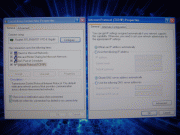

c) Select the Use the following IP address radio button. Enter the following information and select the OK button afterwards:
IP = 192.168.68.1
Subnet Mask = 255.255.255.0
Default Gateway = 192.168.68.1
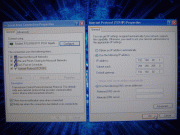


2 – Install & Configure VMware Player software
a) Copy the VMware Player install EXE onto your HDD, along with the DIS v55 files, for faster installation. The files total about 6GB.

b) Run the install EXE and follow the prompts and any recommendations.

c) After the reboot, run VMware Player. Under Commands double-click on the Open icon. The Open Virtual Machine dialog box pops up. Navigate to where you stored the DIS v55 files on your HDD and select the DIS 55 English.vmx file – click on the Open button to continue.


d) You will receive a pop-up that asks if you move or copied the virtual machine. Select the I copied it radio button and click on the OK button to continue.
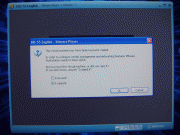

e) Once DIS v55 is open go to the menu bar at the top and select Devices. From the pull-down menu, mouse over Network Adapter and click on Bridged at the following menu. Notice it also says Disconnect above it. This means it’s already CONNECTED – don’t click on Disconnect. Apply those settings for both Network Adapter 2 and Network Adapter 3.
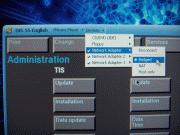


3 – Configure DIS v55 to recognize DK (yellow diagnostic head)
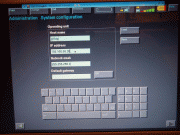
a) Hit CTRL + G to switch to DIS v55. You will be in the Administration section by default. Select Config, System and look under Operating Unit. Set Operating Unit IP address to = 192.168.68.35. Leave Network Mask as the default 255.255.255.0. Leave Host Name to the default of "gt1ap". Leave Default Gateway as blank also by default.


b) After all of that, you need to connect to the OBD-II on the X. It must be connected to the OBD-II port on the X as if you're about to run Diagnostics.

c) If you left, go back into Administration, Admin., Connection Setup and look under Operating Unit. You should now see an item under Free Diagnostic Heads. Highlight the item and then select Connecting.


d) You will receive an IP address conflict prompt for "gt1ap1" (notice it is not "gt1ap"), select IGNORE. You will receive another similar prompt but it will say "gt1ap" this time, select IGNORE.
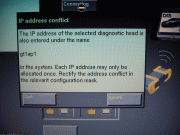

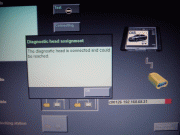
e) You will see a progress bar while its connecting. Once its finished select the TEST button and you should see a screen saying diagnostic head is connected and could be reached.


Done!

Last edited by TwinsPoppa; 04-01-2009 at 07:17 PM.
Reply With Quote
  #168  
Old 03-31-2009, 03:47 PM
TwinsPoppa's Avatar
Member
 
Join Date: Sep 2008
Location: Silver Spring, MD
Posts: 3,523
TwinsPoppa is on a distinguished road
Quote:
Originally Posted by ganesht
They said they only sell the gt1 with dis v55, do you mind me asking where you for your copy of v43? See my first post it lists where I got it from. No, there must be some misunderstanding. Yohotech provided me with DIS v43 pre-installed on a HDD. They also sent me DIS v55 and SSS v32 on DVDs to be used on any laptop through VMware.

also i know the yellow head works with dis v55, but i can only confirm that with a native install.. I can confirm the DK (yellow multiplexer) works with DIS v55 through VMware.

also it is not necessary to use a ibm t30, you can use any laptop which has an ide hard drive, but to get it to work you will need to install and configure the sco linux install with drivers for your laptop. the ibm t30/t23 is very close to the hardware which the actual gt1 uses so native installs are much easier. This sounds like I would need the original GT1 DIS v43 install disks - which I don't have.
See above.
Reply With Quote
  #169  
Old 03-31-2009, 03:50 PM
TwinsPoppa's Avatar
Member
 
Join Date: Sep 2008
Location: Silver Spring, MD
Posts: 3,523
TwinsPoppa is on a distinguished road
Quote:
Originally Posted by ganesht
I found the directions:

1) Install DIS44 base
2) Prepare "special" DIS5x Progman (using rar and ultraiso) :
2.1. remove from original dis5x progman iso
- packages\data\progmcfg.tar
- packages\scripts\i95progm
2.2. add from dis 44 progman to "special" dis5x progman iso
- packages\data\sgc_ecu.tar
- packages\data\sgcupdat.tar
- packages\scripts\i95sgcup
- DAT.XX\sgc
3) Insert "Special" DIS5x pogman disk and start DIS
4) Go to Administration->activate CD->DIS install (note not update - only install), enter password, installation must start.
5) After installation enjoy the DIS5X diagnostic capabilities with DIS44 coding/programming.
Interesting. I'd like to play with that in the future but I don't have any original install disks for either DIS v43 or DIS v55. I assume the DIS v55 that works with VMware is exactly that - only for use with VMware.
Reply With Quote
  #170  
Old 03-31-2009, 03:58 PM
01 BMW_X5's Avatar
Member
 
Join Date: Feb 2008
Location: KS
Posts: 354
01 BMW_X5 is on a distinguished road
I may be wrong but, it sounds like you have the multiplexer and different versions of the software and you want v43.
Several of us have bought from Yohotech and like Twins says, came with v43 on a HDD.
From what I've seen so far, Yohotech is not going to supply you with the install DVD's except the files to use DIS v55 and SSS through VMWare Player.

I get what you are trying to do.
I also wish that I could get v43 coding/programming capability in DIS v55.
Jose, I was on the right track when I made that request for the base install discs.
I would kick v43 HDD to the curb!!
__________________


Last edited by 01 BMW_X5; 03-31-2009 at 04:14 PM.
Reply With Quote
Reply

Bookmarks

Tags
gt1 setup


Posting Rules
You may not post new threads
You may not post replies
You may not post attachments
You may not edit your posts

BB code is On
Smilies are On
[IMG] code is On
HTML code is Off
Trackbacks are On
Pingbacks are On
Refbacks are On


All times are GMT -4. The time now is 07:42 PM.
vBulletin, Copyright 2026, Jelsoft Enterprises Ltd. SEO by vBSEO 3.6.0
© 2017 Xoutpost.com. All rights reserved. Xoutpost.com is a private enthusiast site not associated with BMW AG.
The BMW name, marks, M stripe logo, and Roundel logo as well as X3, X5 and X6 designations used in the pages of this Web Site are the property of BMW AG.
This web site is not sponsored or affiliated in any way with BMW AG or any of its subsidiaries.